Hospitality stock and ordering

Stock and ordering for hospitality: stop ordering from memory at closing time.

In short
Price
Free up to 10 staff · Pro €19/month · Ultra €39/month (excl. VAT)
Start
Every new venue gets 30 days of Ultra, no card
Contract
None — cancel any month, no setup fee
Dimona
Export to your payroll office (no direct declaration)
Who it’s for
Cafés, restaurants, bars, hotels — and any team that works in shifts

SuperHoreca is free for up to 10 staff and one venue, and every new account gets 30 days of Ultra with no card. Ordering and the stock loop are on every plan, the free one included.

Your team flags what is running low from their phones. You see what needs ordering, supplier by supplier, and each supplier gets one email with their share of the order.

Ordering from memory at closing time

In a lot of venues, ordering is a WhatsApp message to the supplier, typed after last orders, from memory. Whatever you remember goes in. Whatever you forgot, you find out on Friday night, when the tonic runs out and the next delivery is Monday.

The opposite happens just as often. When nobody is sure what is left in the cellar, you order an extra crate to be safe, and that money sits on a shelf for weeks. Counting helps, until the sheet with the count has vanished by the next morning.

The problem is rarely the supplier. The information is scattered: with the staff member who saw the limes had run out, in someone’s phone, on a note by the till. SuperHoreca puts it on one list, per supplier, with what is on the shelf and what should be there next to every product.

Your team flags, you order

A staff member who sees something running low taps Flag in the app and types what they see: chardonnay, limes, tonic. Several products at once, with a quantity if they know it and a note if it helps. As they type, the app suggests products from your catalogue.

Those flags land on your order list, grouped by supplier. If three people walk past the same empty crate, it stays one line, marked “Flagged 3×”. Sending is a manager’s job: a staff member flags, and can withdraw their own flag, but never orders anything themselves.

When the app does not yet know which supplier a product comes from, it sits under “Unassigned”. You pick the supplier once and the catalogue remembers: the next flag for that product goes to the right supplier on its own. You can also give each category a default supplier, so a new product filed under drinks goes straight to your drinks wholesaler.

What it looks like

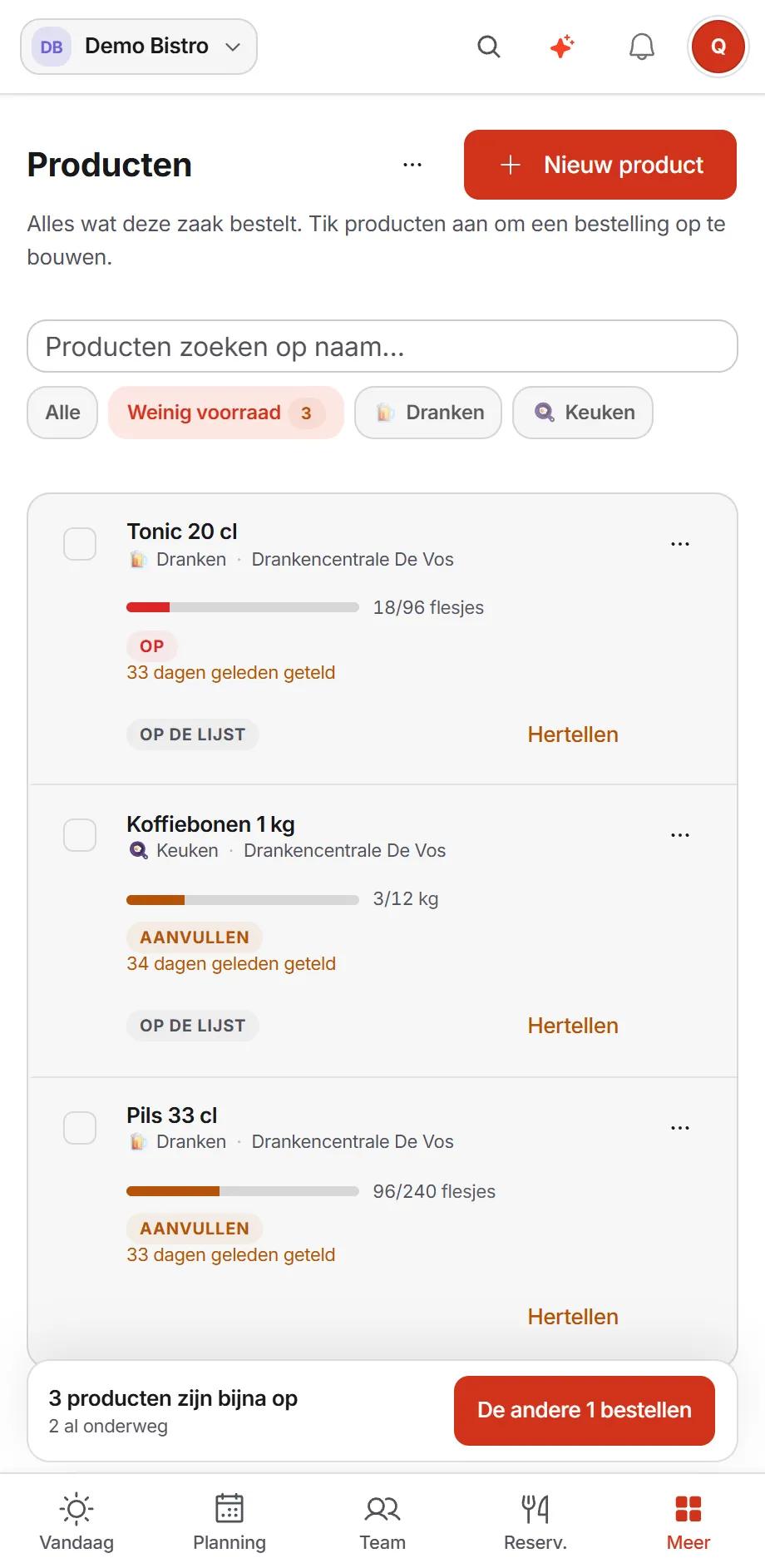
The product catalogue on a phone, filtered to low stock: tonic, coffee beans and lager, each with a bar comparing what is on the shelf with the full level, and a button at the bottom to order the rest
The demo venue’s catalogue, shown here in Dutch (the app also runs in English), filtered to low stock: what is on the shelf against full, and what is already on the order list.

The stock loop: order back to full

For each product you set what full means for your venue, in whatever unit you count: bottles, crates, kilos. Next to it sits what is on the shelf now. The bar shows the gap, and the Low stock filter shows everything at half or below.

Put one of those products on the order list from the catalogue and the app fills in the quantity that takes you back to full: full, minus what is on the shelf, minus what is already ordered and not yet delivered. What went out on Monday does not get ordered again on Wednesday. In the Low stock view, one button puts everything that has not been ordered yet on the list.

To be straight about what is not in there: SuperHoreca is not connected to your till, so it does not know what was sold. Stock changes in two ways only: a delivery you check in adds to it, and a recount sets the number. Once a count is more than three weeks old, its age is shown next to it, so you know when the number was last true.

From list to delivery

  1. 1

    Add your suppliers

    Name, email address, phone number and, if they have one, their webshop. Fill in the order days, the cut-off time and the lead time, and the order list shows something like “Order before 11:00 → delivers Thu”. It is a reminder: it never blocks a send.

  2. 2

    Check the list

    Adjust quantities and notes, and pick a supplier for anything still unassigned. To repeat the last order from a supplier, one menu option puts its items back on the list.

  3. 3

    Send

    Send orders creates one email per supplier, with your venue’s name as the sender, in your venue’s language, with a reference, the delivery day you want and your address at the bottom. You get a copy, and whoever flagged a product is told it has been ordered.

  4. 4

    Read the reply

    When the supplier answers the email, the reply appears on that order in the app and lands in your own inbox too. You can write back from the order itself.

  5. 5

    Check the delivery in

    Untick what was missing: those products go straight back on the order list. A note about a damaged crate goes into the day notes for the team, and what arrived is added to the stock of the products you track. A check-in made by mistake can be undone.

Rather use WhatsApp or the webshop?

Some suppliers prefer WhatsApp. If a supplier has a phone number, SuperHoreca opens WhatsApp with the order already written out, and you press send yourself. No WhatsApp Business account needed. If a supplier works with a webshop, its link sits next to their name on the order list.

There is no direct link to a wholesaler’s systems today. An order goes out as an email to the supplier’s own address, or as a WhatsApp message from your own phone. What is connected is listed on integrations.

Next to your schedule, not in a separate package

Ordering lives in the same app as your schedule and your time clock. The team you plan with the scheduling software is the team that flags what is running low. What that team costs per day is on hospitality staff cost.

If you need recipe costing, a cost price per dish and stock taken off through the till — full inventory management — MarketMan and Apicbase are built for that. How they compare with SuperHoreca is on MarketMan alternative and Apicbase alternative.

Questions we get a lot

Are ordering and stock on the free plan?

Yes. The order list, the catalogue, the stock loop, checking in deliveries and sending by email or WhatsApp are on every plan, Free included. Free is free for up to 10 staff and one venue, with one manager, who sends the orders. More managers start at Pro.

Does my team need to install an app to flag something?

No. They open superhoreca.app in their phone’s browser and tap Flag. Anyone who would rather have an icon on their home screen can get SuperHoreca from the Play Store.

Does SuperHoreca know what was sold?

No. There is no link to your till, so the app cannot see what leaves the shelf. Stock goes up when you check in a delivery and gets a new number when you recount. That is why an old count shows its age.

Is there a link to my wholesaler?

Not today. An order goes out as an email to the supplier’s own address, or as a WhatsApp message you send. When the supplier replies to the email, the reply does come back onto the order in the app.

Can I keep track of prices?

Yes, per order line, if you want to. When every line for a supplier has a price, the review before sending shows the total; if one is missing, it shows no total. Prices are not included in the email to the supplier.

I already have a product list. Do I have to retype it?

No. Paste it, one product per line: your menu, an invoice, an old order. The import strips prices and bullet points, and anything already in your catalogue, or very close to it, is left unticked.

Add your supplier and the products you always order, and let your team flag what runs low tonight. Free for up to 10 staff, and the first 30 days with everything in Ultra, no card.

Create an account